
Creating a cosplay helmet that looks like it jumped right out of your favorite game or movie is no easy task. But don’t worry, I’m here to help! Let’s tackle those 3D printing challenges together and turn your next cosplay project into a show-stopping masterpiece.
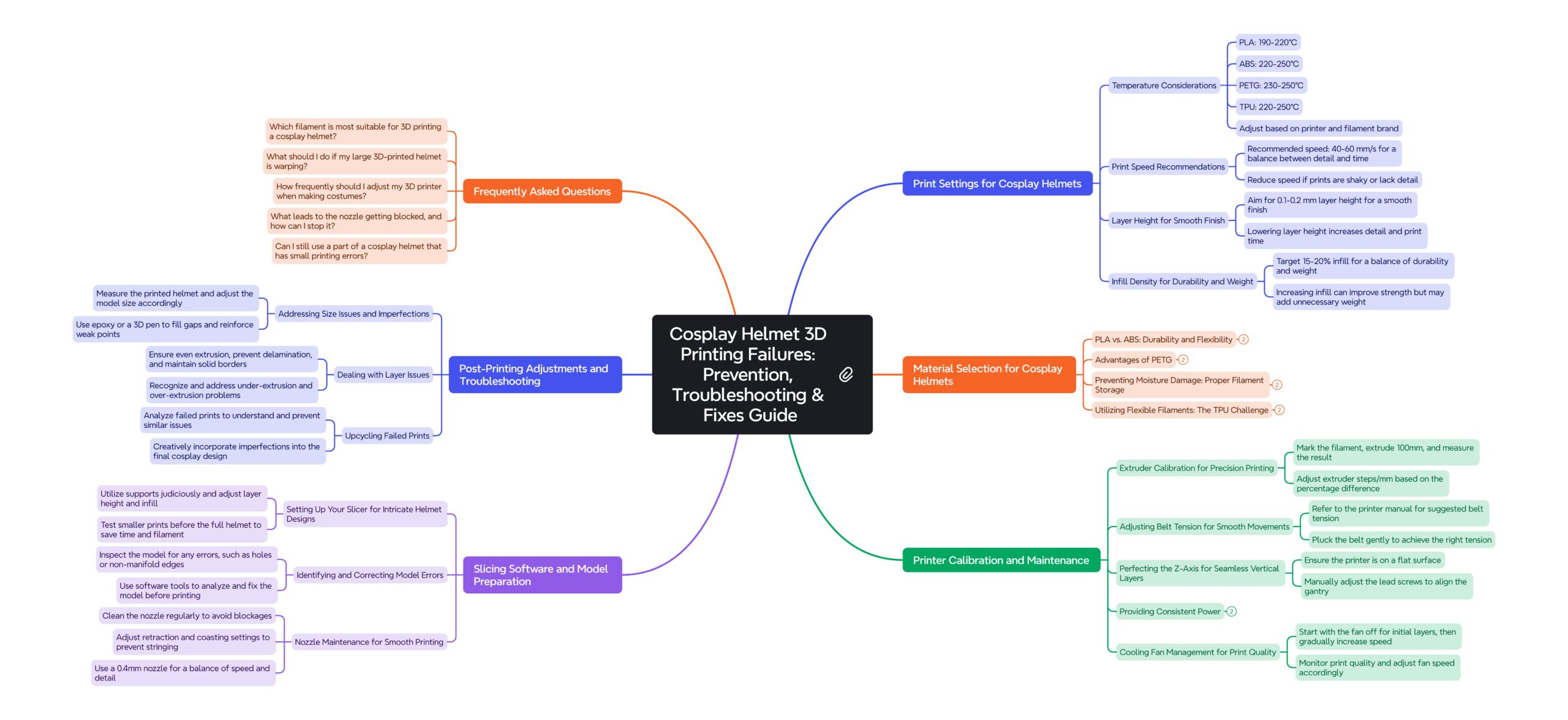
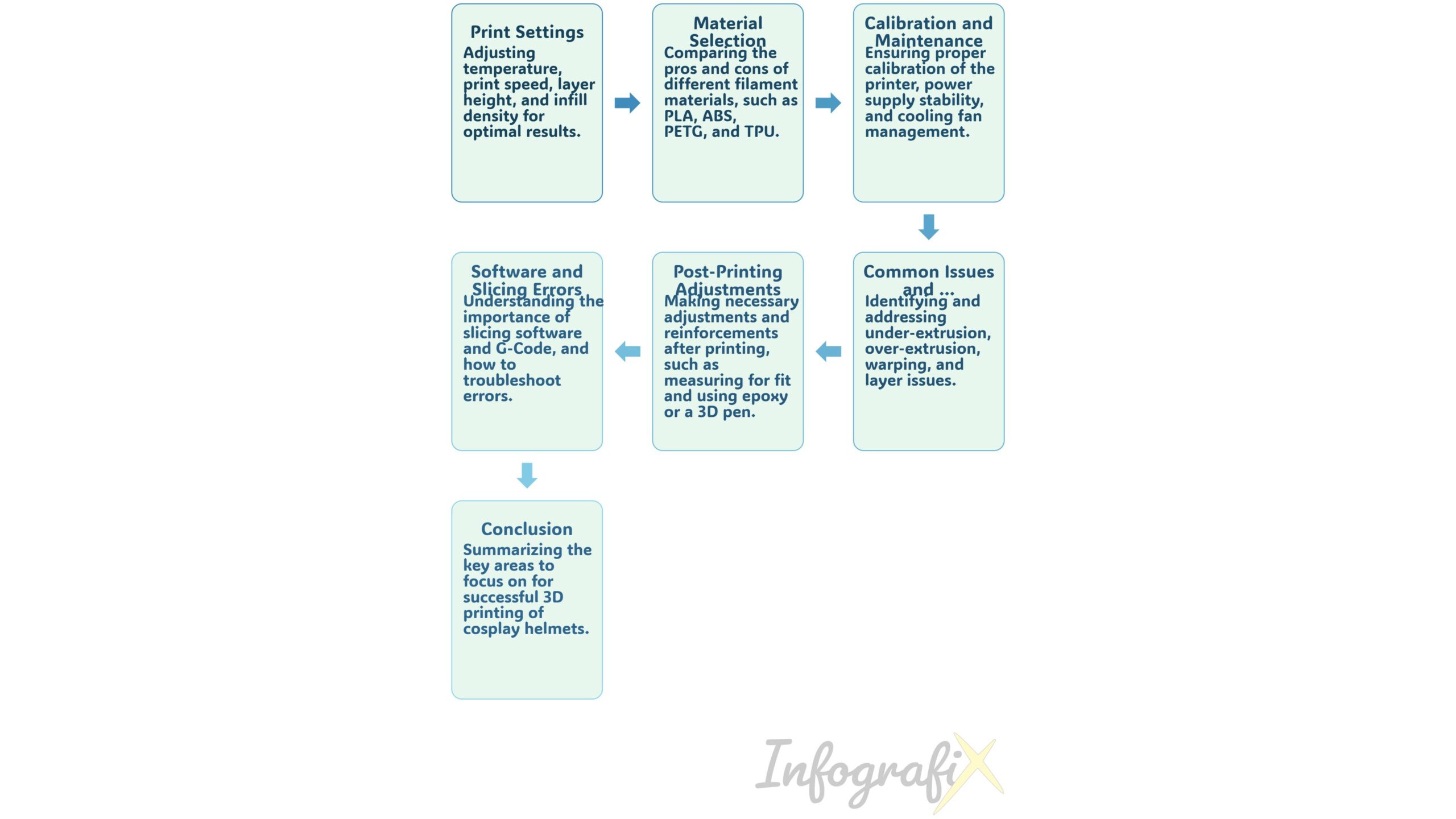
The table below will summarize key aspects of creating a cosplay helmet using 3D printing, highlighting important settings, materials, and troubleshooting tips:+
|
Topic |
Details |
|---|---|
|
Print Settings |
Temperature: |
|
Print Speed |
Recommended speed: 40-60 mm/s for a balance between detail and time. If prints are shaky or lack detail, reduce speed. |
|
Layer Height |
Aim for 0.1-0.2 mm for a smooth finish. Lowering layer height increases detail and print time. |
|
Infill Density |
Target 15-20% infill for a balance of durability and weight. Increasing infill can improve strength but may add unnecessary weight. |
|
Material Selection |
PLA: Easy to print, less durable. |
|
Filament Storage |
Store filament in a dry place to prevent moisture damage. Use a dry box or oven-dry if the filament is cloudy or snapping. |
|
Calibration |
Ensure the printer is calibrated for accurate results. Regularly check extruder calibration and belt tension for smooth operation. |
|
Power Supply |
Use a UPS for a stable power supply during long prints to avoid interruptions. Employ surge protectors to prevent voltage spikes. |
|
Cooling Fan Management |
Start with the fan off for initial layers to ensure adhesion, then gradually increase speed while monitoring print quality. |
|
Slicing Software |
Adjust settings based on design intricacy. Test smaller prints before the full helmet to save time and filament. |
|
Nozzle Maintenance |
Regularly clean the nozzle to avoid blockages. Adjust retraction settings to prevent stringing. Use a 0.4mm nozzle for a balance of speed and detail. |
|
Post-Printing Adjustments |
Measure the printed helmet for fit; adjust the model size in the slicer if necessary. Use epoxy or a 3D pen to fill gaps and reinforce weak points. |
|
Common Issues |
– Under-extrusion: Check extruder tension and filament diameter settings. |
Understanding Print Settings
Getting The Perfect Temperature for Cosplay Helmets
The key to a perfect print starts with the correct temperature. Here’s a quick guide:
PLA: 190-220°C
ABS: 220-250°C
PETG: 230-250°C
TPU: 220-250°C
Keep in mind that these are just starting points. You’ll need to adjust these temperatures based on your printer’s specific needs and the filament brand.
Expert Advice: Make sure to keep an eye on your first layer. If it’s not adhering properly or it appears to be stringy, tweak the temperature little by little until it’s perfect.
Striking the Right Balance Between Print Speed and Quality
It’s easy to get impatient and want to speed up the printing process when creating cosplay helmets. However, if you rush the process, you may end up with a helmet that looks more like a piece of abstract art than a piece of armor. A good starting point is to set the print speed to a moderate 40-60 mm/s. This speed is slow enough to capture the necessary details but fast enough that you won’t be waiting forever for your helmet to print.
Keep in mind: If you see any shaking or if the print isn’t as detailed as you want it to be, reduce the speed until you find the perfect balance between quality and time.
Getting the Perfect Helmet Finish: Layer Height Considerations
Think of layer height as the resolution of your print. The lower the number, the more detailed the print. For helmets, aim for a layer height between 0.1 and 0.2 mm. This range will give you a smooth finish without needing to spend hours sanding.
“When printing my Mandalorian helmet, I initially used a layer height of 0.2mm, which gave me a nice, smooth finish. However, I wanted to capture even more intricate details on the helmet’s rangefinder and other small components. By reducing the layer height to 0.1mm, I was able to achieve a level of precision that made those details pop, even without extensive post-processing.”
Important Note: If the details of your helmet do not stand out, you may want to reduce the layer height. However, keep in mind that this will extend the printing time.
Finding the Perfect Balance between Durability and Weight
The infill of your print is the internal structure. You don’t need a completely solid print for a helmet, but you do need it to be strong. Try to aim for an infill density of 15-20%. This will give you a helmet that is durable but won’t be too heavy to wear to your next convention.
“For my Stormtrooper armor, I knew I needed the pieces to be durable enough to withstand the wear and tear of conventions and photoshoots. I experimented with different infill densities and found that a 20% infill provided the perfect balance of strength and weight. This allowed me to create a helmet that was sturdy enough to protect my head while still being comfortable to wear for extended periods.”
Key Point: Increasing the infill isn’t always the best solution. Striking a balance can help conserve filament and improve wearability.
Material Selection Mysteries
PLA vs. ABS: The Durability and Flexibility Showdown
PLA is the beginner’s best friend. It’s a cinch to print with, and it’s great for detailed work. ABS, on the other hand, is tougher and can take a hit or two. But it’s also a bit trickier to print with because of warping. Here’s a quick comparison:
|
Material |
Pros |
Cons |
|---|---|---|
|
PLA |
– Easy to print |
– Less durable |
|
ABS |
– Durable |
– Can warp |
Material Pros Cons PLA Easy to print, great detail Less durable, can deform in heat ABS Durable, heat-resistant Can warp, needs a heated bed For more in-depth insights into 3D printers filaments for cosplay helmets, check out our ultimate buying guide.
“I once had an issue with my ABS cosplay helmet warping during the printing process. To combat this, I made sure to enclose my printer and maintain a consistent temperature throughout the print. This helped prevent the corners from lifting and resulted in a perfectly flat helmet base.”
Pro Tip: For beginners, it’s best to start with PLA. Once you’ve got the hang of it, you can try using ABS for parts that need to be more durable.
Advantages of PETG: A Perfect Blend of Durability and Transparency
PETG is a fantastic material. It combines the ease of printing of PLA with the durability of ABS. In addition, it has slight flexibility and is transparent, which is perfect for visors or detailed parts.
Pro tip: Opt for PETG if you want your helmet to survive the hustle and bustle of cosplay events while maintaining its sharp detail.
Preventing Moisture Damage: Storing Filament Properly
Moisture is a common culprit behind poor-quality prints. It can cause your filament to become fragile and your prints to appear pockmarked. To avoid this, store your filament spools in a dry location or invest in a dry box. This simple step can save you a lot of frustration.
Pro tip: If you notice your filament snapping or your print appears cloudy, try drying your spool in the oven at a low temperature for a couple of hours. Just remember to watch it closely!
The TPU Challenge: Using Flexible Filaments for Helmets
TPU is fantastic for parts that require flexibility, such as joints or flexible accents. It’s a bit more difficult to print than PLA or PETG, but the outcome is rewarding.
Advice: Be patient when working with TPU, and ensure your extruder is capable of managing flexible filaments. It may require several attempts, but once you get the hang of it, you’ll have access to a plethora of cosplay options.
And there you go—a quick guide on how to avoid 3D printing issues for your cosplay helmet. Keep in mind that the secret to success is patience, experimentation, and a little bit of knowledge. Now, let’s go over some specific problems you might run into and how to solve them.
Overcoming Printer Size Limitations
If you’re working with a smaller 3D printer, you might feel limited when creating a large cosplay helmet. To overcome this, consider segmenting your helmet design into smaller, printable pieces. Use software like Meshmixer to divide your model according to your printer’s build volume and create keys or notches for easy alignment during assembly.
Custom Support Structures
Using supports is essential for maintaining the shape of complex helmet designs during printing. Identify areas that need support, such as overhangs greater than 45 degrees. Custom supports allow for easier removal and less scarring on your print. Experiment with different support designs and optimize their placement for maximum stability.
Next, we’ll talk about calibration and maintenance. They’re just as important as picking the right material and settings. Calibration makes sure your printer gives you accurate results, and maintenance stops the usual problems that can mess up your print.
Calibration Troubles: Ensuring Your Printer Is Ready for the Task
Prior to beginning the printing process for your cosplay helmet, it’s essential to confirm that your printer is calibrated correctly. A printer that isn’t properly calibrated can cause a variety of issues, such as layers not adhering to each other or the entire helmet being printed in the incorrect size.
Extruder Calibration for Precision Printing: A Step-By-Step Guide
Extruder calibration ensures your printer is extruding the correct amount of filament. Proper calibration prevents your helmet from being too weak or too heavy. Follow these steps for accurate calibration:
Mark the Filament:
Mark a section of filament 100mm from the extruder intake.
Preheat the Extruder:
Set your extruder to the appropriate temperature for your filament.
Extrude Filament:
Command your printer to extrude 100mm of filament.
Measure the Result:
Measure the distance between the extruder intake and the new position of your mark. The mark should now be 100mm further away from the intake.
Calculate the Difference:
Compare the extruded length with the expected 100mm and calculate the percentage difference if needed.
Adjust Settings:
Modify your extruder steps/mm in your printer’s firmware or slicer settings based on the percentage difference.
Repeat as Needed:
Repeat the process until the extrusion length matches the expected amount.
Pro Tip: Performing this calibration multiple times ensures greater accuracy and better print quality.
Once you have successfully determined the extrusion rate, you will have made significant progress toward achieving prints that are not only strong but also accurate.
How to Adjust Belt Tension for Smooth Movements
Another important consideration is belt tension. If your belts are too loose, your prints will be shaky. If they’re too tight, they could skip steps or cause your motors to wear out. Here’s a handy checklist to help you get the tension just right:
Refer to your printer’s manual to find the suggested belt tension.
Pluck the belt gently as if it were a guitar string. It should produce a low twang sound.
If you want to be more accurate, use a tension gauge.
Adjust the tension screws until you find the perfect tension.
When your belts are correctly tensioned, your printer will operate smoothly, and your prints will be precise and clear.
Perfecting the Z-Axis for Seamless Vertical Layers
Ensuring the Z-axis is correctly aligned is crucial for layering. If it’s not, you may end up with visible lines or layers that are misaligned. Here’s how to achieve a seamless vertical print:
Ensure your printer is placed on a flat surface.
Measure the distance between the gantry and the base on both sides with a ruler to confirm they are equal.
Manually adjust the lead screws to ensure everything is properly aligned.
While this may seem like a minor detail, it can significantly impact the final appearance of your helmet.
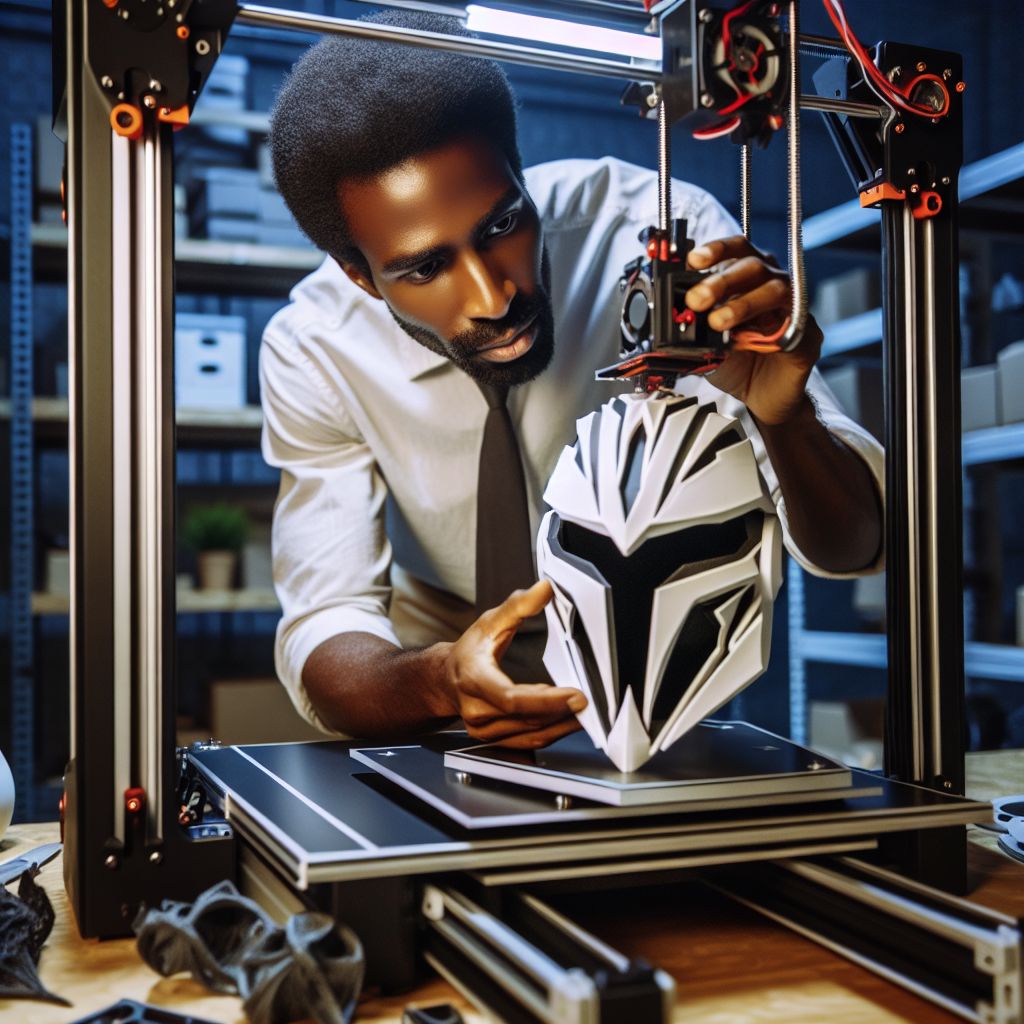
Power Supply Puzzle: Providing Consistent Power
Consistent power is the heart of your 3D printer. Changes or breaks can lead to failed prints or even harm your machine. Let’s ensure your printer has the power it requires to continue producing parts for your cosplay helmet.
Do You Need a UPS for Continuous Printing?
For those living in places with unstable electricity, having a UPS (Uninterruptible Power Supply) can be a real game-changer. Think of it as a safety net for your prints. In the event of a power outage or fluctuation, the UPS will step in and keep your printer running.
It’s a wise move to use a UPS, especially if you’re going to spend a lot of time on a print. When it comes to lengthy prints like cosplay helmets, it’s always better to play it safe.
Power Supply Problems: How to Avoid Voltage Changes
Voltage changes can be small but damaging. They can cause the temperature of your printer to change, which could result in bad adhesion or stringing. Make sure your printer’s power supply is at a steady voltage for the best outcomes.
First and foremost, employ a surge protector to safeguard your electronics from voltage spikes that could destroy them. This is a basic measure that can spare you a lot of trouble.
Finding the Sweet Spot: Cooling Fan Temperature and Noise
The cooling fan is responsible for maintaining the integrity of your prints by immediately solidifying the filament once it’s been laid down. However, if it’s too noisy or too forceful, it can be annoying or even blow strands of filament around, which can lead to stringing. Here’s how to find the perfect middle ground:
Begin with the fan turned off for the initial layers to guarantee solid adhesion.
Slowly raise the fan’s speed while monitoring the quality of the print.
If the filament appears to be cooling too rapidly and becoming distorted, reduce the fan’s speed.
By following these suggestions, your prints will remain cool, and your work area will be silent.
Software Hurdles: How Slicing Errors Can Mess Up Your Project
The correct slicing software is critical for a successful cosplay helmet print. This is where you’ll spend a good deal of time adjusting settings to achieve perfection. Let’s explore some typical software problems and their solutions.
Setting Up Your Slicer: Keeping in Mind the Intricacy of Your Cosplay Helmet
While slicing your helmet model, you should bear in mind the intricacy of the design. Utilize supports judiciously and modify the layer height and infill to achieve the ideal balance of swiftness and detail. Bear in mind that every helmet is unique, so there’s no universal setting.
Before you decide to print the entire helmet, it’s a good idea to play around with various settings on smaller test prints. This will help you save filament and time and reduce your stress levels.
Decoding G-Code: Making Sense of Printer Instructions
G-Code is the communication tool your printer uses. It gives your printer specific instructions on what actions to take and when to take them. If the G-Code is incorrect, your printer could behave erratically, such as moving at an incorrect speed.
While the majority of slicers will automatically generate G-Code for you, it’s helpful to have a basic understanding of the instructions it’s giving your printer. If you’re experiencing problems, it might be worth going through the G-Code to see if anything looks out of place.
Identifying and Correcting Model Errors Prior to Printing
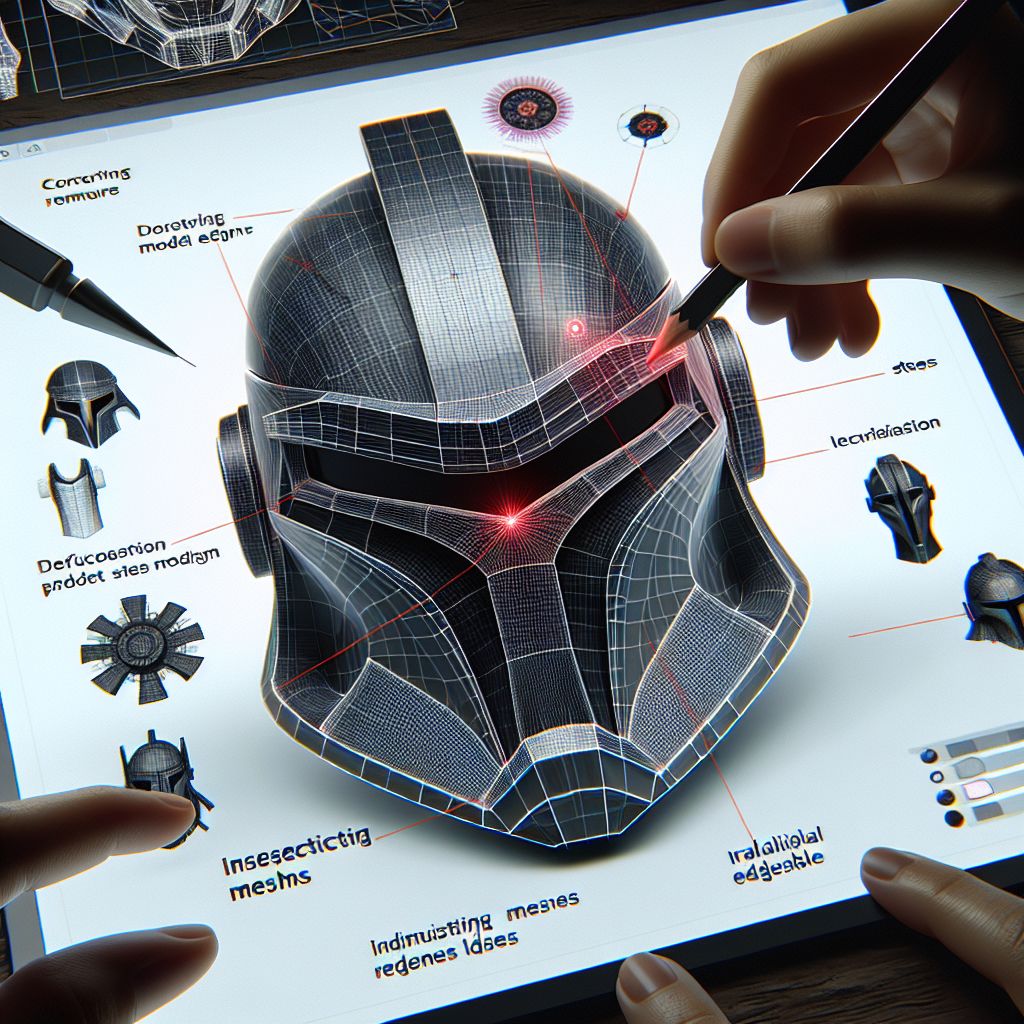
Occasionally, the issue lies within the model itself. Prior to printing, inspect your model for any errors, such as holes or non-manifold edges. If needed, utilize software tools to analyze and fix the model.
It’s a lot simpler to correct a model on your computer than it is to correct a faulty print after several hours of printing.
Dealing with Nozzle Problems: Clogs, Leaks, and Other Hassles
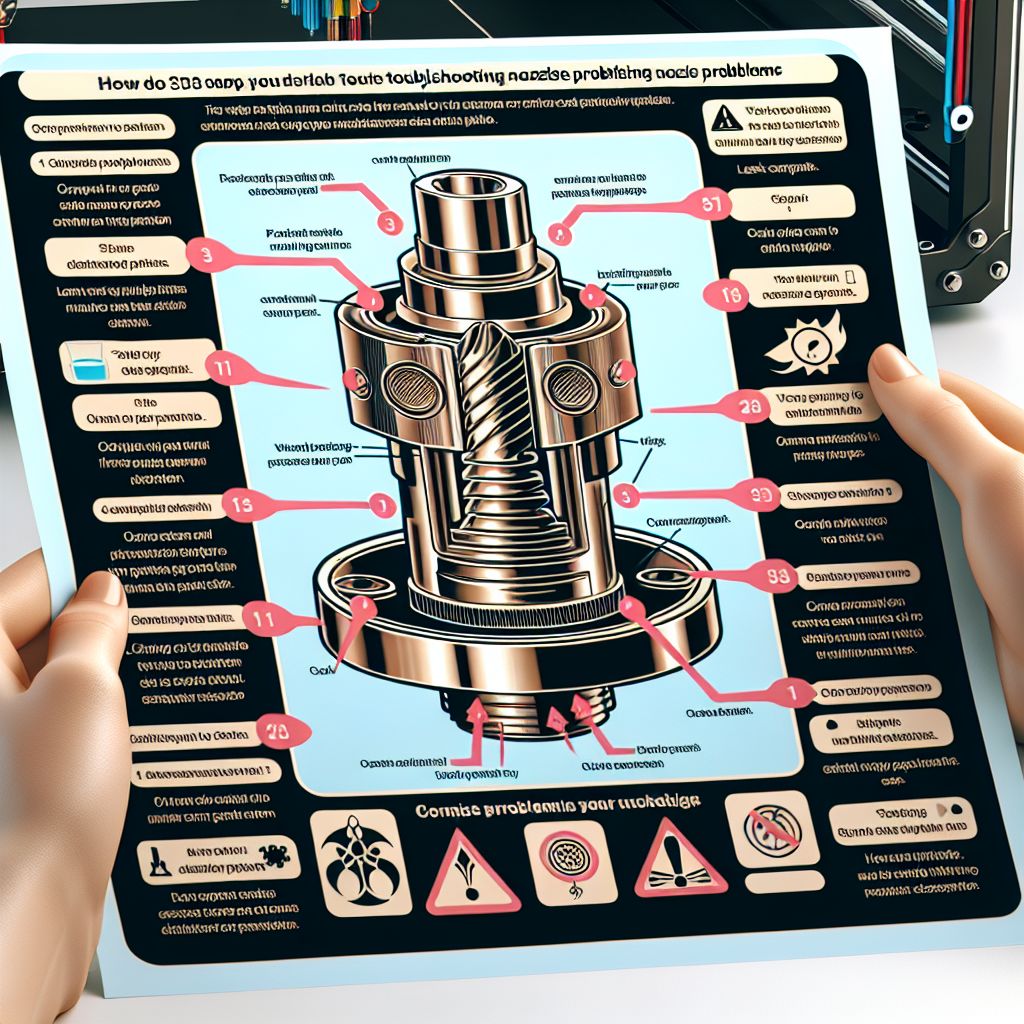
The nozzle is the most important part of your 3D printer. It’s where the actual printing happens, but it’s also where many problems can happen. Here’s how to keep your nozzle in perfect condition.
Avoiding Blockages: Regular Upkeep for Your Nozzle
A blocked nozzle can stop your printing in its tracks. To avoid this, make sure to clean your nozzle on a regular basis. An easy way to do this is to heat it up and push some cleaning filament through. This is particularly important if you’re changing materials, especially if you’re going from a higher to a lower-temperature filament.
By regularly maintaining your equipment, you can ensure that the layers are smooth and even.
Stop Plastic Leakage: Adjust Retraction and Coast Settings
Leakage, or stringing, occurs when filament seeps out of the nozzle between prints. To stop this from happening, tweak your printer’s retraction settings. Retraction slightly retracts the filament when the nozzle moves between sections.
Coasting is another method where you stop the extrusion right before the nozzle lifts, using the inherent pressure to complete the section. Both techniques can significantly decrease stringing.
Choosing the Appropriate Nozzle for Helmet Printing: Size is Important
The size of the nozzle you use has a direct impact on the printing speed and the level of detail in the final product. Larger nozzles will print more quickly, but the detail will be less. Smaller nozzles will provide more detail, but the printing process will take longer. For cosplay helmets, a 0.4mm nozzle is a good compromise between speed and detail.
When you’re working on a large print with not a lot of detail, you might want to use a larger nozzle to get it done faster. But if you’re working on something with a lot of small, intricate details, you’ll want to use a smaller nozzle. It’s all about choosing the right tool for the job.
That concludes the second part of our guide. Stick with me, and soon, you’ll be printing cosplay helmets that are the envy of every convention! Keep in mind that every step in the process is important. From calibration to maintenance, it all adds up to a print you can be proud of.
We’re almost at the end of our 3D printing adventure, and now it’s time to address the most frequent problems that arise after printing and how to solve them. With this advice, you’ll be able to perfect your cosplay helmet and make it the masterpiece it was meant to be.
Adaptation & Troubleshooting
Print failures are a common challenge in 3D printing. To prevent them, check your filament for tangles, ensure your bed is level, and verify that your nozzle is clean before starting a print. If a print fails, analyze the issue to improve future prints. Share your experiences with the community to learn from others and find creative solutions.
Community Forums –> Like:
r/3Dprinting – The 3D printing subreddit, a great place to ask questions and learn from the community: https://www.reddit.com/r/3Dprinting/
Thingiverse Forums – The discussion forums on the popular 3D model-sharing platform: https://www.thingiverse.com/forums
3D Printing subreddit Discord server – Join the active 3D printing community on Discord: https://discord.gg/3dprinting
Finishing Techniques
Post-processing is crucial for achieving a professional-looking cosplay helmet. Start by sanding your print with progressively finer grits to achieve a smooth surface. Fill any gaps or seams with fillers like Bondo or wood filler, and blend them seamlessly with the rest of the helmet. When painting, use thin, even coats and consider weathering techniques to add realism and depth.
Time-Saving and Cost-Management Strategies
Optimizing your print settings can significantly reduce print time and costs. Consider using a larger nozzle for initial layers and a smaller one for detailed areas. Adjust layer height and infill settings to balance strength, material usage, and print speed. Choose cost-effective filaments and buy them in bulk when possible. Streamline your workflow by organizing your workspace and using a checklist for each stage of the process.
Prototyping Tips
Prototyping is essential for testing designs, fittings, and modifications before committing to the final print. Focus on critical areas of fit and function, and print small sections to test size and comfort. Use lower resolution and faster print speeds for test prints, and prioritize features that are crucial for the helmet’s design and fit.
Safety Considerations
Always prioritize safety when post-processing your cosplay helmet. Work in a well-ventilated area, wear protective gear like gloves and a mask when sanding or using chemicals, and follow safety instructions for all tools and materials. Be mindful of sharp edges and use power tools safely.
Layer Issues: When Your Helmet Begins to Unravel
Solid Layers: Battling Uneven Extrusion
Uneven extrusion can be a nightmare, causing gaps in layers or even a helmet that crumbles. To prevent this, you need to make sure your extruder isn’t missing any steps and that your filament is feeding evenly. If you see any unevenness, look for any blockages in the feed path and make sure that your extruder gear is clean and holding the filament correctly.
Delamination: Identifying and Resolving Split Layers
If you notice that layers are beginning to separate, this typically indicates that the temperature is not high enough. The layers should be merging together, but they’re not. You can attempt to rectify this by slightly raising the temperature of the nozzle. If the issue continues, you may need to see if your cooling fan is producing too much wind on the component and make any necessary modifications.
Making Solid Borders: Shells and Walls
Your helmet’s edges should be solid enough to retain their shape and resist damage. To achieve this, ensure that your slicer settings have a shell thickness of at least 1.2mm. This will result in a robust outer wall that can withstand minor mishandling without cracking or losing its shape.
Atypical Underextrusion and Overextrusion Problems
Recognizing Underextrusion: The Warning Signs and Solutions
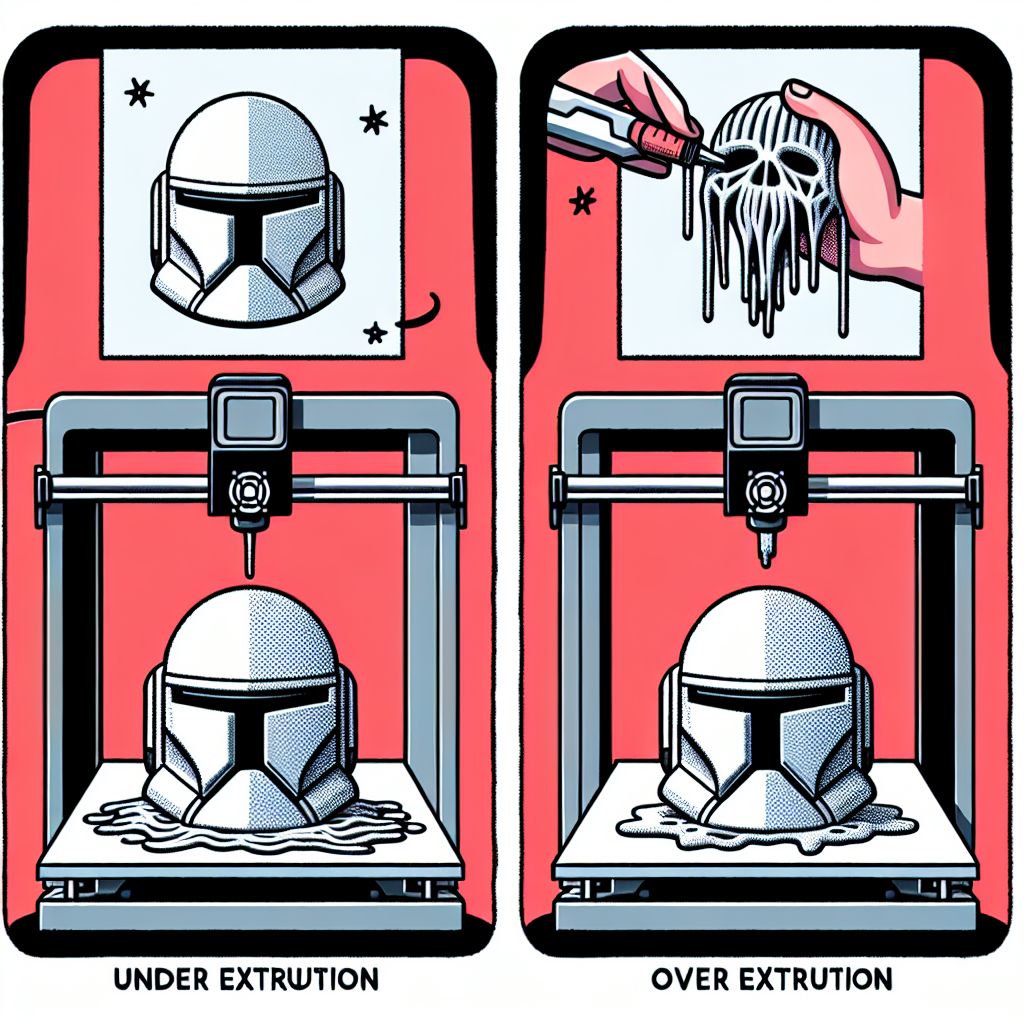
Under-extrusion can result in a helmet that is fragile and riddled with holes. If you notice that the layers aren’t fully developing or there are spaces in the infill, you may need to raise the temperature or ensure that your extruder tension is properly adjusted. It’s also a good idea to confirm that your filament diameter is correctly set in the slicer software.
Dealing with Overextrusion: Reducing the Flow
Conversely, over-extrusion can cause your helmet to look sloppy and add unwanted weight. If you notice filament seeping out between layers or details appearing puffy, lower the flow rate in your slicer settings. This will lessen the amount of filament being extruded and improve the appearance of your print.
Striking the Right Balance: Maintaining a Steady Filament Drive Gear Performance
Your printer’s drive gear, which is responsible for pushing the filament, needs to do so steadily. If you observe random instances of under-extrusion or over-extrusion, inspect the drive gear for any signs of wear or debris. Clean it thoroughly and make sure it has a firm grip on the filament to maintain a steady feed rate.
Post-Printing Problems: When the Helmet Doesn’t Fit Quite Right
Size Snafus: Checking and Correcting the Measurements
Once your helmet is printed, you might find that it doesn’t fit as expected. If it’s too big or too small, you’ll need to measure the actual dimensions and compare them to what you intended. Then, adjust the scale of your model in your slicer software and reprint. You might need to do this a few times, but getting the fit just right is key to a professional-looking helmet.
Plugging Gaps and Filling Holes: A Solution to Imperfections
Even the most perfect prints can have minor flaws. If you discover gaps or holes in your helmet, you can use a little epoxy putty to fill them in or a 3D pen to add filament to the problem area. Once it’s cured, sand it down until it’s smooth, and it’ll be our little secret.
Reinforcing Weak Points: Making Your Helmet Stronger
At times, you may find that some parts of your helmet are not as sturdy as you’d like. You can make these areas stronger by increasing the infill in your slicer settings or by printing extra support pieces that you can attach to the inside of the helmet with glue. This will make your helmet stronger without changing how it looks on the outside.
Frequently Asked Questions
Which filament is most suitable for 3D printing a cosplay helmet?
The most suitable filament for a cosplay helmet really depends on your requirements. If you’re looking for user-friendliness and good detail, PLA is a great option. ABS might be your best bet for something more durable and heat-resistant. PETG is another excellent choice for its strength and clarity, which is particularly useful for visor areas.
What should I do if my large 3D-printed helmet is warping?
To prevent warping, make sure your print bed is level and heated to the right temperature for the material you’re using. Use a brim or raft to keep the corners of your helmet from lifting. If you’re using ABS, enclose your printer to maintain a consistent temperature and avoid warping.
How frequently should I adjust my 3D printer when making costumes?
Whenever you switch filament types or observe irregularities in your prints, you should adjust your 3D printer. Regular upkeep, such as checking the tension of the belt and ensuring the build plate is level, should be performed after a few prints to keep everything in order.
What leads to the nozzle getting blocked, and how can I stop it?
The nozzle can get blocked due to several reasons such as debris in the filament, printing at a temperature that is too low, or leaving the printer idle at high temperatures for a prolonged period. To stop blockages, always use clean, high-quality filament and ensure your printer is set to the right temperature for the material you’re using. Regularly cleaning the nozzle will also help stop blockages.
Example: “I had a clog during a crucial helmet print, and I found out it was due to some dust on the filament. Ever since then, I’ve made sure to store my filament in airtight containers, and I haven’t had a single clog!”
Can I still use a part of a cosplay helmet that has small printing errors?
Yes, small printing errors on a cosplay helmet can often be fixed with a bit of sanding, filling, or creative use of paint. If the errors don’t affect the structural integrity of the helmet, there’s no need to discard the piece. In fact, these imperfections can be transformed into unique opportunities to add character and depth to your cosplay.
Analyzing your failed prints is a crucial step in improving your future 3D printing endeavors. Take a close look at the errors – are there misaligned layers or poor filament adhesion? By understanding what went wrong, you can adjust your settings and techniques to prevent similar issues from occurring in the future.
Upcycling failed prints can be an incredibly rewarding experience. Those warped pieces or misprints can be creatively incorporated into your helmet design. For example, you could use them to create a battle-damaged look or a unique weathering effect that adds to the overall aesthetic of your cosplay. Think outside the box and give your failures a new life.
I once had a visor print that didn’t turn out as clear as I wanted. Instead of throwing it away, I tinted it with some paint to give it a battle-worn look. It became the centerpiece of a post-apocalyptic costume that was a huge hit at the convention. This experience taught me that even seemingly unsuccessful prints can be transformed into something special with a little creativity and resourcefulness.
3D printing a cosplay helmet is a fulfilling journey that merges creativity with innovation. You may run into a few hiccups here and there, but with a little patience and determination, you can craft a helmet that is not only eye-catching but also sturdy. Pay careful attention to each stage of the process, from setting up your printer to finishing your print, and you’ll be on the fast track to cosplay victory!
Remember, every failed print has a story to tell and provides valuable lessons for future projects. Embrace these learning experiences and share them with the cosplay community.
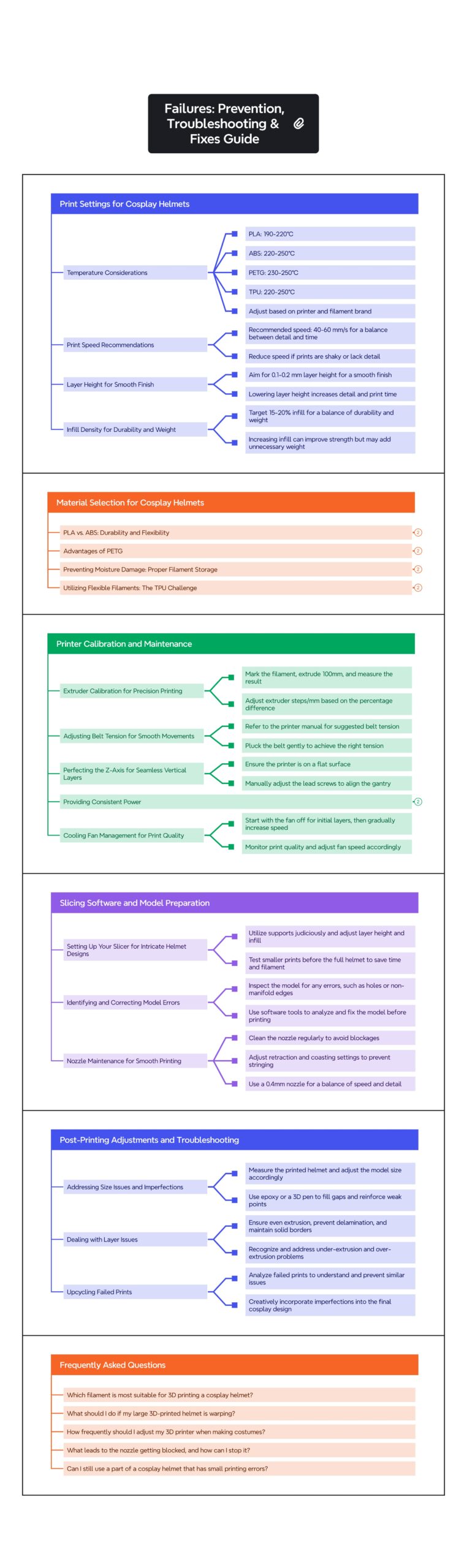
As we wrap up, the following grid provides a structured overview of the key concepts discussed in this post. Use it as a quick reference to reinforce your understanding and explore the connections between the main ideas:


Leave a Reply